Git
Version Control System, or VCS, allows you to save a snapshot of your coding project at any time you want. It's like making a copy of your project for backup and safe keeping, except that VCS typically does this in a more efficient fashion. It also comes with facilities to restore to an earlier copy (version).
Git is the world’s most popular version control system. It can keep a complete history of the changes made to code, and revert back to old versions when needed. This feature comes handy when you want to make changes to code without losing the original.
Git also facilitates synchronizing code between different people, thus making collaboration in a team very easy. This feature leads to increases productivity in particular in large software project that involves many developers.
Git jargon
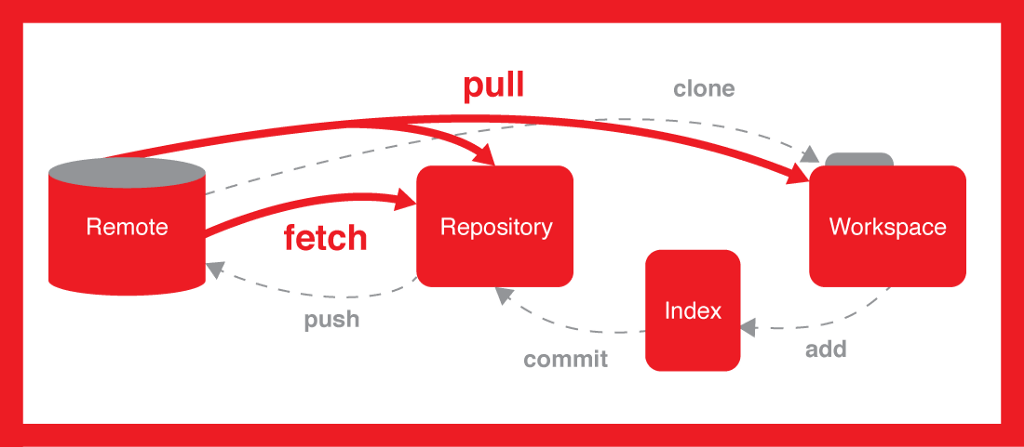
- Repository: A collection of files tracked by Git. The files that make up the content of this website is kept in a Git repository. We will make a repository for your homework, and one for your group project.
- Commit: Git does not save any changes made to the files within your repository until you "commit" it. So, as a verb, it is the action of storing a new snapshot of the repository's state in the Git history. When "commit" is used as a noun, it refers to a single point in the Git history.
- Staging: Let's explain this one with an example; assume you made changes to 4 files within your repository, but you only want to commit 2 of them because the other 2 are buggy or not complete yet. How do you commit only 2? Well, you put them in the "staging area" after which you commit. So, staging a file means that you have marked it for a commit.
Install Git
Follow the instructions provided here to setup Git on your laptop or personal computer.
Using Git Locally
Open terminal in Linux or MacOS, or "Git Bash" on Windows.
Checking if Git is installed
git --version
Tell Git who you are
git config --global user.email "you@example.com"
git config --global user.name "Your Name"
Setting up and starting a new Git repo
cd path\to\your\working\directory # a bad working directory is your desktop!
mkdir repository_name  # use a name of your choosing.
cd repository_name
git init
Git is not tracking all changes within the folder repository_name
If you are not comfortable with commands like cd and mkdir, you may want to consider reading a little on the Unix/Linux command line. I recommend "The Linux command line for beginners" by Ubuntu Tutorials (won't take an hour to complete it).
Adding new files to the staging area
touch README.md # this command makes the file README.md in current directory
git status
You must get a list of Untracked files.
git add .
git status
You must get a list of "Changes to be committed". By using git add . we added all (un-staged) files in your repository in the staging area.
You don't need to use git status every time you interact with Git. I used it to show you what happens when you make a new file (before and after it is to the staging area).
Committing the files
git commit -m "a message to commit with"
git status
Checking commit history
git log
The first few lines represent files that were modified or added, the numbers after the commit field represent the hash value of the commit (a unique string that identifies the commit). The Author and Date fields contain information about the author, time of commit, and the message the author sent with the commit.
Open README.md file in your favorite text editor. Add your name to it and then save the file.
Head back to the terminal and execute git status; is Git smart enough to figure you've made a change to README.md?
Follow the commands above to add and commit the changes made to README.md to Git history.
Try git log again; how many commits do you have?
Reverting to a previous commit
git checkout specific-commit-id # the commit id is a hash value.
Can you revert back the README.md file?
Summary of useful commands
git add <filename(s)>: add files to the staging area to be included in the next commitgit add .: adds all files
git commit -m "message": take a snapshot of the repository and save it with a message about the changesgit commit -am <filename(s)> "message": add files and commit changes all in one
git status: print what is currently going on with the repositorygit log: print a history of all the commits that have been madegit reflog: print a list of all the different references to commits
git checkout <commit>: revert the working copy back to a given commit. Use it if you want to discard changes to un-staged file/s.git reset --hard <commit>: reset the repository to a given commit. Use it if you want to undo staging of a modified file.git clone <url>: take a repository stored on a server (like GitHub) and downloads itgit clone <url> folder-name: clone to folder-namegit clone -b <branch> <url>: clone a specific branchgit push: push any local changes (commits) to a remote server (push only after you staged and committed the changes)git fetch: download all of the latest commits from a remote to a local devicegit pull: pull any remote changes from a remote server to a local computergit branch: list all the branches currently in a repositorygit branch <name>: create a new branch called namegit checkout <name>: switch current working branch to namegit merge <name>: merge branch name into current working branch (normally master)git merge origin/master: merge origin/master, which is the remote version of a repository normally downloaded with git fetch, into the local, preexisting master branchgit remote set-url origin https://github.com/USERNAME/REPOSITORY.git:changing a remote's URL
Here is a two-page PDF containing the most useful Git commands.
My "go to" place on learning Git (with many handy resources on using it): git-tower.com/learn/
If you don't like working with terminal to manage your git repository, you are in luck! There are several great software that provide a graphical user interface (GUI) for it. You may want to checkout gitkaraken, sourcetree, or gittower. Moreover, IntelliJ has Git and GitHub plugins that makes it easy to manage your repository within the IDE. This will get you started!
If you prefer watching a video on basic Git commands & Github, I suggest watching this half hour crash course video.